Key Takeaways
- A noindex tag tells Google to keep a page out of its search results. The page stays live, and visitors can still open it.
- The rule can sit in 2 places: a meta tag in the page’s HTML, or an X-Robots-Tag HTTP header. A page with clean HTML can still be excluded.
- Google has to crawl a page to read its noindex rule. If robots.txt blocks the URL, Google never sees the tag, and the page can still show up in results.
- Google says a page must be indexed to appear as a supporting link in AI Overviews or AI Mode. A noindexed page doesn’t qualify.
- “Excluded by noindex tag” in Search Console is fine on pages you chose to hide. On a service page or a buying guide, it means lost traffic until someone removes the rule.
If a new page gets no traffic from Google, check it for a noindex tag first. Noindex keeps a live page out of Google’s search results, and out of AI Overviews and AI Mode with it. Look in the page’s HTML and in its HTTP headers, then confirm in Google Search Console with the URL Inspection tool.
What Is a Noindex Tag?
A noindex tag is a rule that tells search engines not to index a page. The page stays online, and anyone with the link can still read it. It won’t appear in Google’s results.
Take a golf site that publishes a guide called “Best Drivers for Mid-Handicap Golfers” at yourgolfsite.com/best-drivers. Visitors open the URL and read the guide normally. But the page’s HTML contains this line:
<meta name="robots" content="noindex"> The tag sits in the page’s <head> section. When Googlebot crawls the page and reads it, Google drops the guide from its results.
Backlinks won’t bring it back. Google says it drops the page “regardless of whether other sites link to it.”
Meta Tag or X-Robots-Tag: Where a Noindex Rule Hides
Most people look for the meta tag first. Google reads the rule in 2 places, and only one of them shows up in the page source:
| Meta robots tag | X-Robots-Tag HTTP header | |
|---|---|---|
| Where it lives | In the page’s <head> | In the server’s response, sent along with the file |
| What it looks like | <meta name="robots" content="noindex"> | X-Robots-Tag: noindex |
| How to see it | View the page source | Chrome DevTools (Network tab) or URL Inspection |
| What it covers | HTML pages | Any file, including PDFs, images, and videos |
| How it usually gets there | A CMS or SEO plugin setting | A server, CDN, or template rule |
So a page can have no noindex tag in its HTML and still tell Google to exclude it. The header is also how you noindex files that have no HTML. Google’s documentation shows server rules for Apache and NGINX that add the header to every PDF on a site at once.
If the 2 places disagree, Google says: “In the case of conflicting robots rules, the more restrictive rule applies.” A clean meta tag won’t cancel a noindex in the header.
When a Noindex Tag Is the Right Choice
Noindex is the right tool for a page visitors need but searchers don’t. Google’s “Control what you share” page gives low-quality content, like some user-generated content, as one reason to keep pages out of Search. It warns that indexing it “may have a negative effect on your site’s ranking.”
On the golf site, the results page from the site’s own search box, /search/drivers, is a fair candidate. A visitor who searched the site needs it. A searcher who lands on it from Google gets a list of links and nothing else.
Other pages we often noindex for clients: thank-you pages after a form, login pages, staging copies of the website, and thin tag pages with a handful of posts each.
Duplicate pages are a different case. If 2 URLs show the same content, use a canonical tag to tell Google which one counts. Google says it doesn’t recommend noindex “to prevent selection of a canonical page within a single site,” because noindex blocks the page from Search completely.
If you hide pages this way, keep a list of which ones and why. When something drops out of Google later, that list tells you in a minute whether it was a decision or a mistake.
How Noindex Ends Up on Pages That Should Rank
The SEO risk of a misplaced rule is simple: the page loses its search traffic and its place in AI Overviews, and nothing on the page looks broken. Finding one on a service page or a buying guide usually means someone left it there by accident, in one of 3 ways:
- A site-wide CMS setting. WordPress has a “Discourage search engines from indexing this site” box under Settings > Reading. When it’s checked, WordPress adds
noindex,nofollowto the<head>of every page. Teams tick it while the site is being built and forget it at launch. - A page-level SEO setting. SEO plugins and most CMS platforms let you set noindex page by page. A page duplicated from a noindexed one can inherit the setting.
- A server or template rule. An
X-Robots-Tagheader added on the server, or a rule in a template, can noindex a whole section of the site at once. Nothing shows in the HTML.
The first one does the most damage: 1 checkbox removes the whole site from Google.
Run the same review when you work on site structure or publish new content. If you’re fixing orphan pages or listing URLs in your XML sitemap, make sure the pages you want found don’t carry a noindex rule.
Robots.txt vs Noindex: Which One Keeps a Page Out of Google
The 2 rules do different jobs:
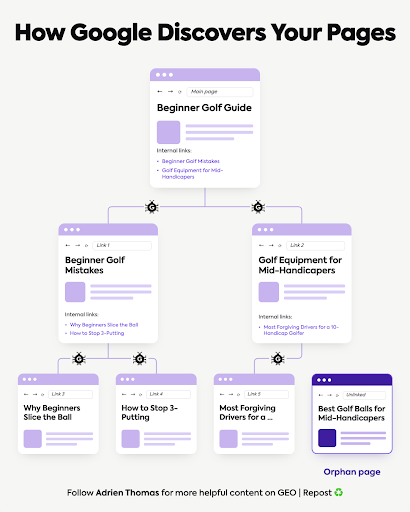
- robots.txt controls which URLs Googlebot is allowed to crawl.
- noindex tells search engines not to show a page in their results.
Mixing up disallow and noindex is where it goes wrong. Googlebot has to crawl a page to read its noindex rule. Google’s documentation says that if robots.txt blocks the page, “the crawler will never see the noindex rule, and the page can still appear in search results.” Putting noindex inside robots.txt doesn’t work either: Google says it “is not supported.”
So to keep a page out of Google, let Googlebot crawl it and add noindex. Don’t block the same URL from crawling.
This also affects how you read Search Console. Google’s URL Inspection help says that if a page is blocked by robots.txt, “Indexing allowed?” “will always be ‘Yes'”, because Google can’t see the noindex. Always read that line together with “Crawl allowed?”.
The Page indexing report shows the same trap from the other side. Its status “Indexed, though blocked by robots.txt” means Google indexed a URL it isn’t allowed to crawl, usually because other pages link to it. A noindex rule can’t fix that while the block stays, because Google can’t read it.
Noindex and nofollow are a separate pair. Noindex keeps the page out of results. Nofollow, in Google’s words, means “Do not follow the links on this page.”
What a Noindex Tag Means for AI Overviews and AI Search
Google sets one technical condition for its AI features: “To be eligible to be shown as a supporting link in AI Overviews or AI Mode, a page must be indexed and eligible to be shown in Google Search with a snippet.” It adds: “There are no additional technical requirements.”
A noindexed page fails that condition. If your buying guide carries a noindex tag, it can’t be a supporting link in an AI Overview for the searches it targets.
Google also has a separate, site-wide setting for its AI features. The Search generative AI control in Search Console (Settings > Search generative AI) lets you include or exclude your site from AI Overviews, AI Mode, and generative AI features in Google Discover. Google says it rolled the control out “to all websites worldwide” as of August 31, 2026. It only covers those AI features. For the whole of Search, Google says: “To block your content from appearing in Google Search completely, use noindex.”
Other AI platforms are less clear. Perplexity’s and Anthropic’s crawler documentation explain robots.txt, but we haven’t found either one explaining how they treat noindex. Don’t assume a noindexed page is hidden from every AI platform. If a page must stay private, Google’s advice is to put it behind a password.
“Excluded by Noindex Tag” in Search Console: How to Find and Fix It
To check a single page:
- HTML. Right-click the page, select View Page Source, and search for
noindex. - HTTP headers. In Chrome, open DevTools, go to the Network tab, reload the page, and click the first request. Look for
X-Robots-Tagin the response headers. - Google’s view. Inspect the URL in Google Search Console. The result shows whether indexing is allowed.
To check the whole site, open the Page indexing report in Search Console. Pages where Googlebot found noindex tags or headers show up as “Excluded by ‘noindex’ tag” (Google’s help page for the report calls the same reason “URL marked ‘noindex'”). Go through that list and compare it with the pages you meant to hide.
When you find one that shouldn’t be there, remove the rule from the HTML or the HTTP header. Then, in Search Console:
- Inspect the page’s URL.
- Click “Test live URL.”
- Check that indexing is now allowed.
- Click “Request indexing.”
The order matters. Google says “You cannot request indexing if the page is considered to be non-indexable in the live test.” A request still doesn’t guarantee the page gets indexed, so watch the page’s status over the following days.
Noindex doesn’t work immediately. If you add noindex tags to a page that’s already in Google, it drops out the next time Googlebot crawls the page. If you need it gone faster, use the Removals tool in Search Console. Google says “A successful request lasts only about six months,” so add noindex too, or remove the page, to keep it out for good.
Check Every Page Before It Goes Live

Before you publish or relaunch a page, check 4 things:
- Should this page appear in Google Search?
- Does it return a noindex rule in its HTML or its HTTP headers?
- Can Googlebot crawl it, with no robots.txt block?
- In URL Inspection, what do “Crawl allowed?” and “Indexing allowed?” show?
“Noindex does what it says, on whatever page it’s on. The risk is the pages where it ended up by accident.”
Adrien Thomas, co-founder of Crescendo
Check your service pages and guides once, then again after every redesign or migration. Those are the moments when old settings come back.
At Crescendo, indexing checks are part of the technical and GEO audits we run for clients. A page Google can’t index can’t show up in AI Overviews either. If you want us to check which of your pages Google is skipping, contact us at Crescendo.
FAQ
What is a noindex tag?
A rule, set in a page’s HTML or its HTTP header, that tells search engines not to show the page in their results. The page stays live, and visitors can still open it directly or through your links.
How can I check if my website has a noindex tag?
For one page, search the page source for noindex and check the response headers for X-Robots-Tag. For the whole site, open the Page indexing report in Google Search Console and look for “Excluded by ‘noindex’ tag.”
What’s the difference between noindex and nofollow?
Noindex keeps a page out of search results. Nofollow tells Google not to follow the links on the page. WordPress’s “Discourage search engines” setting adds both at once.
Can backlinks get a noindexed page back into Google?
No. Google says it drops a noindexed page from its results “regardless of whether other sites link to it.” The page comes back only once the rule is removed and Google recrawls it.
How long does a page take to come back after I remove noindex?
Google has to recrawl the page first, and it says a revisit “may take months” for some pages. To speed it up, run the live test in URL Inspection and request indexing once the page passes.